HP LaserJet Pro Printers - Printer Views - HP laserjet p1102
HP LaserJet Pro Printers - Printer Views - HP laserjet p1102
This document is for HP LaserJet Pro P1102, P1102s, P1102w, P1106,
P1108, P1109, and P1109w printers.
Front and left side view
Figure : HP LaserJet Professional P1102, P1102s, P1106,
P1108, P1109 front view
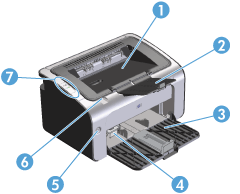
-
Output bin
-
Foldable output tray extension
-
Input tray
-
Short media extender tool
-
Power button
-
Print-cartridge door lift-tab
-
Control panel
Figure : HP LaserJet Professional P1102w, P1109w front
view
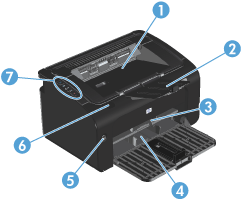
-
Output bin
-
Foldable output tray extension
-
Priority input slot
-
Main input tray
-
Power button
-
Print-cartridge door lift-tab
-
Control panel
Back view
Figure : Product back view
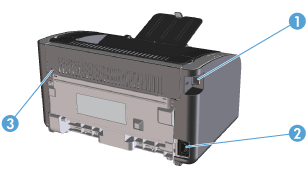
-
USB port
-
Power connector
-
Kensington lock
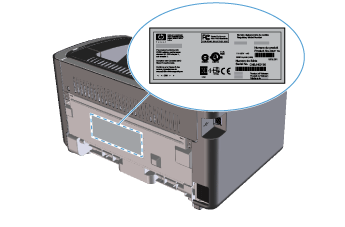
Serial number and product number location
The label that contains the product number and serial number is on the
rear of the product.
Figure : Location of product number and serial number
label
Control-panel layout
Figure : HP LaserJet Professional P1102, P1102s, P1106,
P1108, P1109 control panel layout
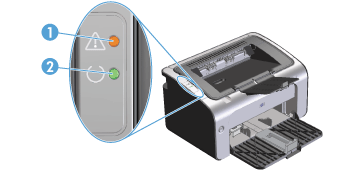
-
Attention
 light: Indicates that the print cartridge door is open or
other errors exist.
light: Indicates that the print cartridge door is open or
other errors exist.
-
Ready
 light: When the product is ready to print, the ready light
is on. When the product is processing data, the ready light blinks.
light: When the product is ready to print, the ready light
is on. When the product is processing data, the ready light blinks.
Figure : HP LaserJet Professional P1102w, P1109w control
panel layout
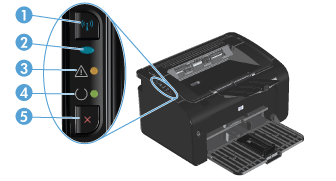
-
Wireless
 button: To detect wireless networks, press the wireless
button. This button also enables and disables the wireless feature.
button: To detect wireless networks, press the wireless
button. This button also enables and disables the wireless feature.
-
Wireless light: When the product is searching for a network, the wireless light blinks. When the product is connected to a wireless network, the wireless light is on.
-
Attention light: Indicates that the print cartridge door is open or
other errors exist.
-
Ready light: When the product is ready to print, the ready light
is on. When the product is processing data, the ready light blinks.
-
Cancel
 button: To cancel the print job, press the cancel button.
Press and hold the button for 5 seconds to print a configuration
page.
button: To cancel the print job, press the cancel button.
Press and hold the button for 5 seconds to print a configuration
page.
https://support.hp.com/

Comments
Post a Comment